Atlas2 parameters
Apart from using layoutParameters, more parameters can be set by using the parameters from diagram-util. This is currently only available with Atlas2 (and not with basic force layout).
Atlas2 parameters can be built as follows:
Atlas2Parameters atlas2Parameters = new Atlas2Parameters.Builder()
        .withMaxSteps(500)
        .withRepulsion(3)
        .withSpeedFactor(1.2)
        .build();
Atlas2ForceLayout atlas2ForceLayout = new Atlas2ForceLayout(new SquareRandomSetup<>(), atlas2Parameters);
atlas2ForceLayout.run(graph, layoutParameters);
Here is an example on the ieee-118 nodes graph, with default parameters:

Ran in 106 steps, 55 ms
Note that once created, atlas2ForceLayout can be used on multiple different graph without having to create the object again (but the calculations will still have to be done again from the start).
Default values
Name |
Type |
Default value |
Value range |
|---|---|---|---|
\(maxSteps\) |
|
6000 |
\(\geq\) 1 |
\(repulsionIntensity\) |
|
4 |
\(\gt\) 0 |
\(edgeAttractionIntensity\) |
|
1 |
\(\gt\) 0 |
\(attractToCenterIntensity\) |
|
0.001 |
\(\geq\) 0 |
\(speedFactor\) |
|
1 |
\(\gt\) 0 |
\(maxSpeedFactor\) |
|
10 |
\(\gt speedFactor\) |
\(swingTolerance\) |
|
1 |
\(\gt\) 0 |
\(maxGlobalSpeedIncreaseRatio\) |
|
1.5 |
\(\gt\) 1 |
\(attractToCenterForceEnabled\) |
|
true |
true / false |
\(barnesHutTheta\) |
|
1.2 |
\(\geq\) 0 |
\(quadtreeCalculationIncrement\) |
|
13 |
\(\geq\) 1 |
maxSteps
Change the maximum number of iteration the algorithm is allowed to run. Atlas2 has a stopping criterion, so for most networks, the run ends before the maximum number of steps is reached. Changing the maximum number of steps generally becomes relevant only when going past 8k nodes networks, with the default parameters.
Atlas2Parameters atlas2Parameters = new Atlas2Parameters.Builder().withMaxSteps(50).build();

repulsionIntensity
The coefficient of repulsion controls the intensity of the repulsion force between all nodes. Increasing this will make the network more sparse (ie nodes will be further apart).
Atlas2Parameters atlas2Parameters = new Atlas2Parameters.Builder().withRepulsion(40).build();

edgeAttractionIntensity
The coefficient of edge attraction controls the force between points that share an edge, increasing this might help with emphasizing clusters of points. It will also tend to make the graph smaller.
Atlas2Parameters atlas2Parameters = new Atlas2Parameters.Builder().withEdgeAttraction(0.5).build();

attractToCenterIntensity
The coefficient for the force that attracts all points to the center of the 2D space. Smaller values will lead to a less dense graph.
Atlas2Parameters atlas2Parameters = new Atlas2Parameters.Builder().withAttractToCenter(0.006).build();

speedFactor
Coefficient used to calculate individual point speed factor based on the global graph speed. The link between global and local speed is not a simple multiplication by this coefficient, but it is used in the calculation. If this is lower, points will be slower. A lower value might give worse results in terms of convergence speed, but it might help with stability. A value between 0.8 and 1.2 is generally good.
Atlas2Parameters atlas2Parameters = new Atlas2Parameters.Builder().withSpeedFactor(2).build();

maxSpeedFactor
The maximum factor for local speed compared to global speed. Lowering this might mean slower convergence, but it improves stability (ie points might swing less around their stability position). This value should always be bigger than the speedFactor (it still works if it’s smaller, but it will work better if it’s bigger). Increasing this too much opens the door to erratic behaviour.
Atlas2Parameters atlas2Parameters = new Atlas2Parameters.Builder().withMaxSpeedFactor(15).build();

swingTolerance
How much do we accept swing contributing to the global speed of the graph. A lower value means that we accept less swinging. If this value is too low, the global speed of the graph will be low and convergence will slow down. If it’s too high, we can observe erratic behaviour in the way the points move. You probably shouldn’t change this unless you know what you are doing.
Atlas2Parameters atlas2Parameters = new Atlas2Parameters.Builder().withSwingTolerance(1.3).build();

maxGlobalSpeedIncreaseRatio
How much can the global speed increase between each step. Higher means that the graph will reach a good global speed faster, but it might lead to more erratic behaviour between each step
Atlas2Parameters atlas2Parameters = new Atlas2Parameters.Builder().withMaxGlobalSpeedIncreaseRatio(1.1).build();

activateAttractToCenterForce
Activate or deactivate the force that attracts points to the center of the graph. It is used to prevent non-connected points from drifting away. It is generally ill-advised to deactivate this, but if you are sure that everything is connected together then you can deactivate it
Atlas2Parameters atlas2Parameters = new Atlas2Parameters.Builder().withActivateAttractToCenterForce(false).build();

barnesHutTheta
The \(\theta\) parameter controlling the Barnes-Hut optimization. The higher the value, the more approximations we are doing. It is discouraged to use a value higher than 1.5~2
If your network is small (less than 500 points), you can set this to 0 using withBarnesHutDisabled, as it might be faster that way.
This is especially relevant if you need to perform a force layout on many small networks (not so much if you are only doing it a few times).
Below is a graph showing the time taken to calculate a layout with Barnes-Hut (in blue) versus without it (in red).
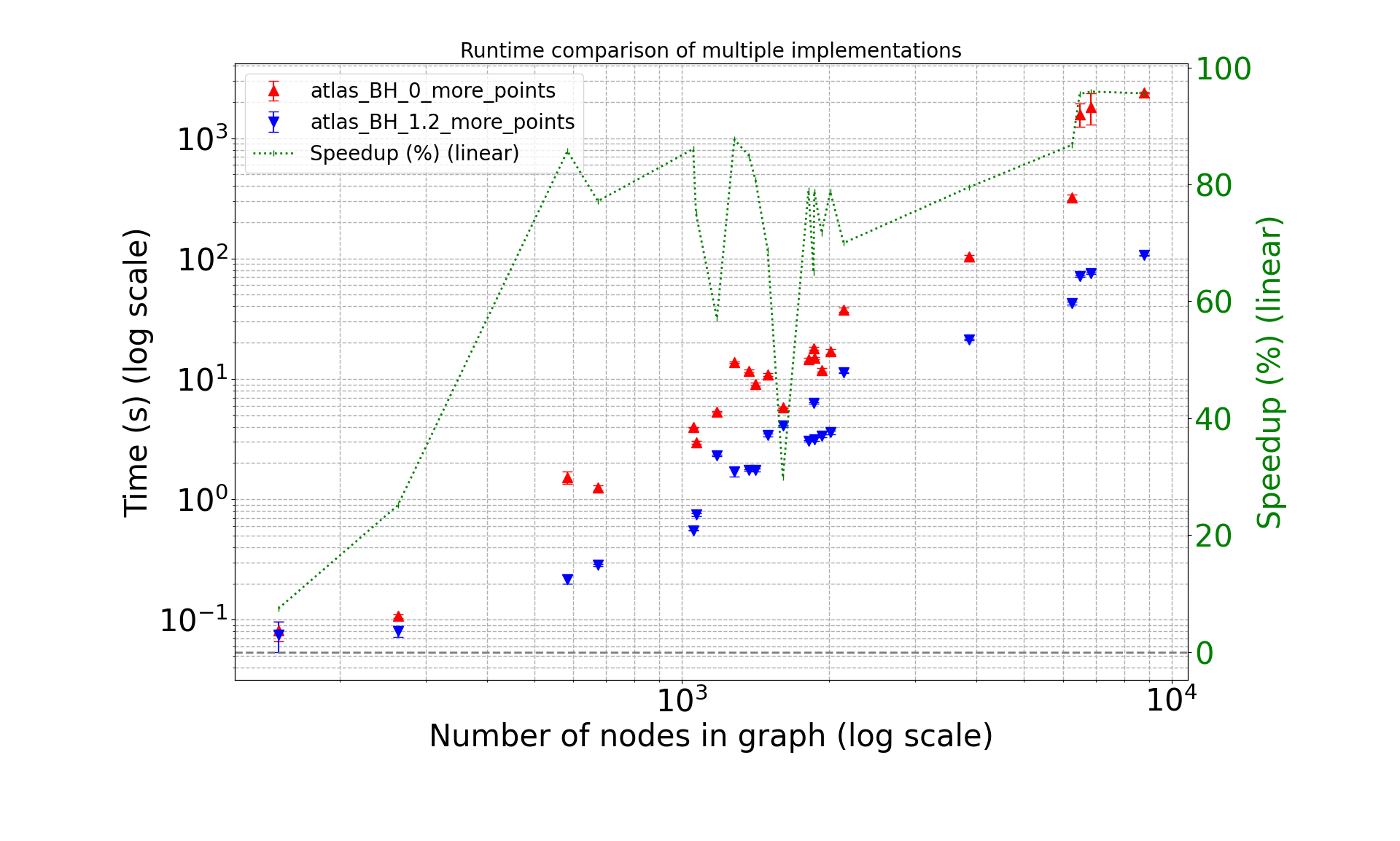
The drop in relative performance for one of the networks in the middle is an exception due to the specificity of the shape of the network used.
Below are two images showing the visual result without (left) and with (right) Barnes-Hut. The value used in Barnes-Hut for the theta is the default of 1.2.


quadtreeCalculationIncrement
Barnes-Hut uses a quadtree to perform its optimization. A further optimization is to not re-calculate this quadtree at every step of the simulation, but at every \(quadtreeCalculationIncrement\) step instead. For small values, it provides a noticeable increase in performance, but does not change the visual result too much. Generally, the larger your graph is, the bigger this value can be. A value bigger than 30 would probably be too much though.